
△Click on the top right corner to try Wukong CRM for free
So, you know when you're trying to keep track of all your customers—like who called last week, what they wanted, whether they’re happy with the service, or if they’re even going to renew their contract? Yeah, it gets messy real quick if you're just using spreadsheets or sticky notes. That’s where a CRM comes in. And honestly, I think one of the first things people wonder is: “What does a CRM interface actually look like?” Like, is it some complicated tech thing only IT folks can figure out? Or is it something I could open up and start using without needing a manual?
Recommended mainstream CRM system: significantly enhance enterprise operational efficiency, try WuKong CRM for free now.
Let me tell you—it really depends on the CRM, but most modern ones are designed to be pretty user-friendly. When you log into a CRM, the first thing you usually see is a dashboard. It’s kind of like the home screen, you know? It gives you a snapshot of everything important—recent activities, upcoming tasks, sales numbers, maybe even customer satisfaction ratings. It’s not cluttered; it’s meant to help you get oriented fast.
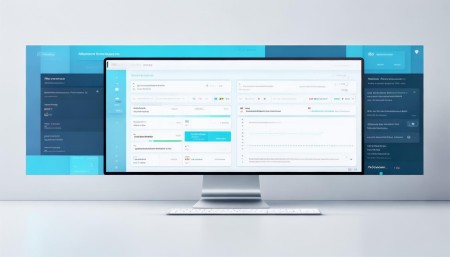
Now, imagine that dashboard has little boxes—widgets, they call them—and each one shows something different. One might show how many new leads came in this week. Another could list your top-performing team members. There’s probably a calendar view too, so you don’t miss any follow-ups. Honestly, it feels a bit like logging into your personal email or social media feed, but way more professional and focused on work stuff.
From there, you’ve got your main navigation menu, usually along the left side of the screen. It’s like a sidebar with clear labels: Contacts, Accounts, Leads, Opportunities, Tasks, Calendar, Reports—you name it. Click on “Contacts,” and boom, you’re looking at a list of all your customers or prospects. Each row has their name, company, phone number, email, maybe even their last interaction date. You can sort them, filter them, search for someone specific—super intuitive.
And when you click on an individual contact, that’s where it gets interesting. You’re taken to their profile page, which is basically their entire history with your company. You can see every email you’ve sent them, every call logged, every meeting scheduled. Some CRMs even pull in emails from your inbox automatically, so you don’t have to manually add them. It’s like having a digital scrapbook of your relationship with that person.
I remember the first time I saw a timeline view in a CRM—where everything is laid out chronologically. It was such a game-changer. Instead of digging through old emails or asking coworkers, “Hey, did we talk to Sarah last week?” I could just glance at the timeline and see exactly what happened, when, and who was involved. It made me feel way more in control.
Another cool thing? Tabs within the contact record. So, on one tab, you’ve got basic info—name, job title, address. On another, you’ve got communication history. Then there’s a tab for deals or opportunities linked to that person. Maybe they’re considering buying your software, so there’s a whole section tracking where they are in the sales process. Are they still evaluating options? Did they get a quote? Have they scheduled a demo? All of that lives right there.
And speaking of sales, the Opportunities section is usually its own area in the CRM. It’s where your active deals live. You can see the potential value of each deal, the expected close date, the probability of winning it—stuff like that. A lot of CRMs use a pipeline view here, which is basically a visual representation of your sales funnel. You’ve got stages like “Prospecting,” “Qualified,” “Proposal Sent,” “Negotiation,” and “Closed Won” or “Closed Lost.” You can drag and drop deals from one stage to the next, which makes updating progress feel almost satisfying.
I’ve used CRMs where the pipeline looks like a Kanban board—cards moving across columns. Super visual, super easy to grasp at a glance. My sales manager loved it because she could walk by my screen and instantly see how things were going without me having to explain anything.
Then there’s the Activities section. This is where you schedule calls, set reminders, assign tasks. You can create a to-do like “Follow up with Mark about pricing” and set a due date. The CRM will remind you—or even send an email notification—so you don’t forget. Some systems let you link activities directly to a contact or deal, so everything stays connected.
Oh, and calendars! Most CRMs have built-in calendars that sync with Outlook or Google Calendar. So if you schedule a meeting in your CRM, it shows up in your regular calendar app too. No double-booking, no confusion. Plus, after the meeting, you can log notes right there—what was discussed, next steps, who’s responsible. It keeps everything in one place.
Now, let’s talk about customization. One thing I really appreciate is that a lot of CRMs let you tweak the interface to fit your team’s workflow. For example, if you’re in real estate, you might want fields for property type or showing dates. If you’re in consulting, maybe you care more about project timelines and billing status. You can usually add custom fields, change layouts, even rename sections so they make sense for your business.
And permissions—yeah, that matters too. Not everyone on your team needs to see everything. Your intern probably doesn’t need access to financial details or sensitive client notes. So admins can set up roles and permissions, deciding who sees what. It keeps things secure and organized.
Mobile access is another big deal. I mean, how often are you actually sitting at your desk these days? A good CRM has a mobile app that looks clean and works smoothly. You can check your tasks, update a deal, or log a call while you’re on the go. Some apps even let you take photos—like snapping a pic of a signed contract—and attach it directly to a client’s record. Super handy.
Integrations are kind of the invisible magic behind a great CRM experience. It connects with your email, your calendar, your marketing tools, maybe even your accounting software. So when someone fills out a form on your website, they automatically become a lead in your CRM. Or when you close a deal, it triggers an invoice in QuickBooks. It cuts out so much manual data entry.
Reporting and analytics—okay, I’ll admit, I wasn’t excited about this part at first. But once I started using it, I realized how powerful it is. You can generate reports on sales performance, customer retention, lead conversion rates—basically any metric you care about. And the dashboards can show charts and graphs that make trends easy to spot. Like, if your team’s closing fewer deals this month, you can dig into why. Was it fewer leads? Longer sales cycles? The data helps you figure it out.
Some CRMs even have AI features now. They’ll suggest the best time to follow up with a lead, or predict which deals are most likely to close. It’s not mind-reading, but it’s pretty smart. It learns from your behavior and past outcomes to give you helpful nudges.
But here’s the thing—not all CRMs look the same. Salesforce has a certain style, HubSpot looks different, Zoho has its own vibe. Some are more colorful and modern, others are more corporate and structured. But the core elements are usually there: contacts, deals, activities, reporting. The layout might vary, but the purpose is the same—to help you manage relationships better.
And honestly, the best CRMs feel less like software and more like a natural extension of how you already work. You’re not fighting the system; it’s helping you stay on top of things. It remembers what you forget, organizes what you’d otherwise lose, and gives you insights you wouldn’t catch on your own.
I’ve seen teams go from chaos to clarity just by switching to a decent CRM. Before, they were drowning in spreadsheets and missed follow-ups. After? Everyone knew who to call, when, and why. Sales went up, customer satisfaction improved, and stress levels dropped. It wasn’t magic—it was just having the right tool with a clear, usable interface.
So, to sum it up: a CRM interface is usually clean, organized, and built around the idea of keeping customer information accessible and actionable. It’s got dashboards, lists, profiles, pipelines, calendars, and reports—all designed to make your life easier. It’s not about flashy graphics; it’s about functionality wrapped in a design that makes sense.
And the more I use one, the more I realize it’s not just a database—it’s like a command center for your customer relationships. Everything you need is right there, updated in real time, ready when you are.
Q: What’s the first thing I see when I log into a CRM?
A: Usually, it’s a dashboard with key metrics and recent activity—kind of like your homepage.
Q: Can I customize what the CRM looks like?
A: Yes, most modern CRMs let you adjust layouts, add custom fields, and personalize views based on your role or industry.
Q: Is the CRM mobile-friendly?
A: Absolutely. Most have dedicated mobile apps that sync with the desktop version so you can work from anywhere.
Q: Do I have to enter all the data manually?
A: Not usually. Many CRMs integrate with email, websites, and other tools to automatically capture and organize data.
Q: How do I find a specific customer quickly?
A: Just use the search bar—type their name or company, and you’ll pull up their full record in seconds.
Q: Can my team collaborate inside the CRM?
A: Definitely. You can assign tasks, leave internal notes, and tag teammates on updates or activities.
Q: What if I don’t want everyone seeing all the data?
A: You can set up user permissions so people only see what they need to do their jobs.

Q: Does a CRM show my sales progress visually?
A: Yes, most have pipeline views that show deals moving through stages, often as a drag-and-drop board.
Q: Can I see my to-dos and meetings in one place?
A: Yep—CRMs usually include task lists and calendars that sync with your email calendar.
Q: Will a CRM help me understand my business better?
A: Totally. Built-in reports and analytics show trends in sales, customer behavior, and team performance.

Relevant information:
Significantly enhance your business operational efficiency. Try the Wukong CRM system for free now.
AI CRM system.