
△Click on the top right corner to try Wukong CRM for free
Accessing your Customer Relationship Management (CRM) system efficiently is essential for maintaining strong client relationships, tracking sales progress, and streamlining daily operations. Whether you're a new employee or someone returning after an extended break, understanding how to log in correctly ensures uninterrupted access to vital business data. This guide walks you through the login process step by step, highlights common issues users face, and offers practical solutions to keep your workflow smooth.
Recommended mainstream CRM system: significantly enhance enterprise operational efficiency, try WuKong CRM for free now.
Before diving into the login steps, it’s important to understand what a CRM system does. At its core, a CRM platform collects customer data—such as contact information, purchase history, communication logs, and support tickets—and organizes it in one accessible location. Sales teams use it to manage leads, marketing departments track campaign performance, and customer service representatives resolve inquiries faster. Because of the sensitive nature of this data, secure login procedures are critical.
Most modern CRM systems offer web-based access, meaning you can log in from any device with an internet connection—be it a desktop computer, laptop, tablet, or smartphone. Some platforms also provide dedicated mobile apps for on-the-go access. Regardless of the method, the login process generally follows a similar structure.
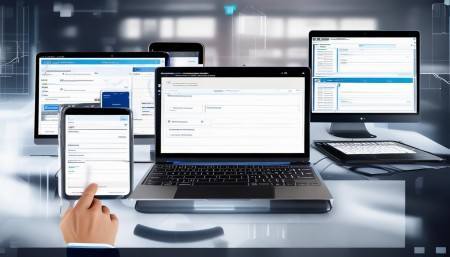
Step 1: Navigate to the Login Page
Open your preferred web browser—Google Chrome, Mozilla Firefox, Safari, or Microsoft Edge—and type in the official URL provided by your organization. This address is typically shared during onboarding or available in internal documentation. Avoid searching for the CRM name on public search engines, as this may lead to phishing sites designed to steal credentials.
If your company uses a custom domain (e.g., crm.yourcompany.com), make sure you’re entering it exactly as instructed. Typos in the URL are a common cause of failed login attempts. Once the page loads, look for the “Login” or “Sign In” button, usually located in the top-right corner of the screen.
Step 2: Enter Your Credentials
On the login form, you’ll be prompted to enter your username and password. In most cases, the username is your company email address. Some organizations use employee IDs or custom usernames, so refer to your initial setup email if unsure.
When typing your password, ensure that Caps Lock is off and that you’re entering the correct characters. Many users overlook simple mistakes like extra spaces or incorrect case sensitivity. If your CRM supports autofill, consider allowing your browser to save your credentials—but only if you’re using a private, secure device.
Step 3: Complete Two-Factor Authentication (2FA)
For enhanced security, many CRM platforms require two-factor authentication. After entering your password, you may receive a one-time code via SMS, email, or through an authenticator app like Google Authenticator or Microsoft Authenticator.
Check your phone or email for the code and enter it in the designated field. If you’re using an authenticator app, open it and input the six-digit number displayed next to your CRM account. This step confirms your identity and helps prevent unauthorized access, even if someone obtains your password.
In some cases, your organization might use biometric verification—like fingerprint or facial recognition—especially on mobile devices. Follow the prompts carefully to complete this stage.
Step 4: Troubleshoot Common Login Issues
Despite careful preparation, login problems can still occur. Here are some frequent scenarios and how to resolve them:
-
Forgot Password?
Click the “Forgot Password” link below the login fields. You’ll be asked to enter your email address. A reset link will be sent to your inbox. Follow the instructions to create a new password. Make sure to choose a strong combination of letters, numbers, and symbols, and avoid reusing passwords from other accounts. -
Account Locked Due to Multiple Attempts
Entering an incorrect password too many times may temporarily lock your account. Wait 15–30 minutes before trying again, or contact your IT administrator to unlock it immediately. -
2FA Code Not Received
Check your network connection and ensure your phone has signal. If using SMS, verify that your registered number is up to date. For authenticator apps, confirm that the time on your device is synchronized. If issues persist, request a backup code from your admin team. -
Page Won’t Load or Shows Error Messages
Clear your browser cache and cookies, then restart the browser. Try accessing the CRM from a different browser or device. If the problem continues, it could be a server-side issue—check with your IT department for system status updates.
Step 5: Customize Your Dashboard After Login
Once successfully logged in, take a moment to familiarize yourself with the dashboard. Most CRM systems allow personalization—pin frequently used modules, adjust notification settings, and set default views for contacts or deals.
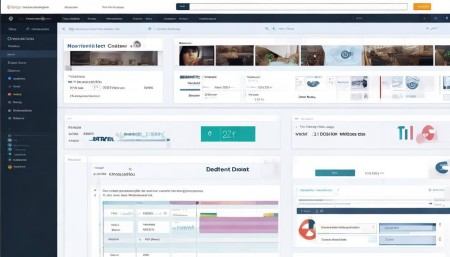
Consider enabling features like dark mode if available, especially for prolonged screen use. Bookmarking the login page can also save time in future sessions.
Security Best Practices
Protecting your CRM account goes beyond just logging in correctly. Adopt these habits to maintain data integrity:
- Never share your login details with colleagues, even temporarily.
- Log out when stepping away from your device, particularly in shared workspaces.
- Avoid using public Wi-Fi networks to access the CRM; if necessary, use a virtual private network (VPN).
- Regularly update your password and enable multi-factor authentication if not already active.
- Report suspicious login attempts or unexpected password reset emails to IT immediately.
Mobile Access and Offline Mode
Many CRM platforms offer mobile applications compatible with iOS and Android. Download the official app from the App Store or Google Play—never from third-party sources. The login process mirrors the web version: enter your credentials and complete 2FA.
Some mobile CRMs support offline mode, allowing you to view and edit records without an internet connection. Changes sync automatically once connectivity is restored. This feature is especially useful for field sales representatives visiting clients.
Single Sign-On (SSO) Integration
Larger organizations often implement Single Sign-On, allowing employees to access multiple systems—including the CRM—using one set of credentials. If your company uses SSO, you’ll be redirected to your corporate identity provider (e.g., Microsoft Azure AD, Okta, or Google Workspace) after clicking “Login.” Enter your work email and password there, and you’ll be automatically authenticated into the CRM.

With SSO, you don’t need to remember a separate CRM password. However, losing access to your primary work account means losing access to all linked services, so safeguard that account diligently.
What to Do If You Can’t Log In at All
If none of the troubleshooting steps work, reach out to your internal support team. Provide them with specific details: the exact error message, the time of occurrence, the device and browser used, and whether others in your department are experiencing similar issues.
Avoid repeatedly attempting to log in, as this may trigger additional security blocks. Instead, wait for guidance from IT professionals who can investigate server logs or reset permissions if needed.
Logging Out Properly
Always log out when finished, especially on shared or public computers. Look for your profile icon—usually in the top-right corner—and select “Log Out” or “Sign Out.” Closing the browser tab isn’t always sufficient, as some sessions remain active in the background.
Staying Updated
CRM platforms frequently release updates that may affect login procedures or interface layouts. Stay informed by subscribing to internal newsletters or attending training sessions. Knowing about upcoming changes helps prevent confusion during routine access.
Final Thoughts
Logging into your CRM system should be a seamless experience, but occasional hiccups are normal. By following the steps outlined above and adopting secure practices, you minimize disruptions and protect valuable customer information. Remember, your ability to access and use the CRM effectively directly impacts productivity and client satisfaction.
As technology evolves, so do authentication methods. Keep an eye out for new features like passwordless login, facial recognition, or hardware security keys, which may become standard in the near future. Staying adaptable ensures you remain proficient regardless of changes.
Whether you're managing a sales pipeline, scheduling follow-ups, or analyzing customer behavior, reliable access to your CRM is the foundation of success. Take the time to understand the login process thoroughly—it pays off in efficiency, accuracy, and peace of mind.
Frequently Asked Questions
Q: What should I do if I forget my CRM password?
A: Click the “Forgot Password” link on the login page. Enter your registered email address, and follow the instructions sent to your inbox to reset your password.
Q: Can I access the CRM from my phone?
A: Yes, most CRM systems have mobile apps available on iOS and Android. Download the official app and log in using your usual credentials.
Q: Why am I being asked for a second code after entering my password?
A: This is two-factor authentication (2FA), a security measure that requires a second form of verification, such as a code from your phone, to confirm your identity.
Q: Is it safe to save my CRM login in the browser?
A: Only if you’re using a personal, password-protected device. Avoid saving credentials on shared or public computers.
Q: What if I don’t receive the 2FA code?
A: Check your network connection, ensure your phone number or email is correct, and verify that your authenticator app’s time is synced. Contact IT if the issue persists.
Q: How do I know if the CRM website is legitimate?
A: Always use the URL provided by your company. Look for “https://” at the beginning and a padlock icon in the address bar, indicating a secure connection.
Q: Can multiple people use the same CRM login?
A: No. Each user should have a unique account for accountability and security. Sharing logins violates most company policies and increases risk.
Q: What happens if I’m locked out of my account?
A: Wait 15–30 minutes before trying again, or contact your IT administrator to unlock it manually.
Q: Does the CRM work without internet access?
A: The web version requires internet, but some mobile apps offer limited offline functionality. Data syncs once connectivity is restored.
Q: How often should I change my CRM password?
A: Follow your organization’s policy. Many companies require password changes every 60 to 90 days for security reasons.

Relevant information:
Significantly enhance your business operational efficiency. Try the Wukong CRM system for free now.
AI CRM system.