
△Click on the top right corner to try Wukong CRM for free
Alright, so you’ve just been handed this CRM system—maybe your boss said, “Hey, we’re using this now,” or maybe you saw it pop up on your desktop and thought, “What in the world is this?” Don’t worry. I’ve been there. It looked like a maze at first, honestly. But once I got the hang of it, everything started making sense. So let me walk you through it like we’re having coffee together, because that’s how I’d want someone to explain it to me.
Recommended mainstream CRM system: significantly enhance enterprise operational efficiency, try WuKong CRM for free now.
First off, what even is a CRM? Well, CRM stands for Customer Relationship Management. Sounds fancy, right? But really, it’s just a tool that helps you keep track of everyone you’re working with—clients, leads, partners, you name it. Instead of scribbling notes on sticky pads or losing emails in your inbox, you put all that info in one place. And guess what? Everyone on your team can see it too. No more “Wait, did John talk to Sarah last week?” moments.
When you log in, the first thing you’ll see is your dashboard. Think of it like your home base. It shows you what’s coming up—tasks, meetings, follow-ups—so you don’t miss anything important. I used to forget to call people back until my manager gave me an earful. Now, I glance at my dashboard every morning with my coffee, and I’m golden.
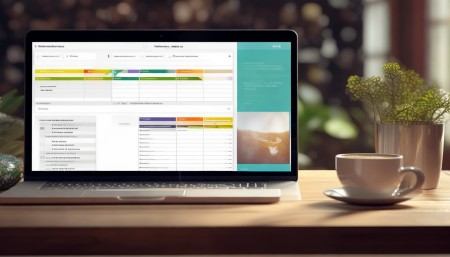
Now, let’s say you’ve got a new lead—someone who filled out a form on your website or came to your event. You’d go to the “Leads” section and click “Add New.” It’ll ask for basic stuff: name, company, email, phone number. Just fill it in like you’re entering a contact in your phone. But here’s the cool part—you can also add notes. Like, “Met at networking event, seemed interested in pricing options.” That way, when you call them later, you don’t sound clueless.
Once you start talking to that lead and they show real interest, you can move them into “Contacts” or even “Opportunities,” depending on where they are in the sales process. Moving them isn’t just symbolic—it changes what kind of actions you can take. For example, with an Opportunity, you can start tracking deals, set values, and predict closing dates. I love this part because it helps me plan my month. If I see three big deals possibly closing next week, I know I need to prep contracts and loop in my manager.
One thing I wish I knew earlier? The calendar sync. Yeah, you can connect your CRM to Google Calendar or Outlook. Once you do that, every meeting you schedule in the CRM automatically shows up in your regular calendar. No double-booking, no missed calls. I used to have five different calendars going—my work one, personal one, project one—and I was always late. Now, it’s all in one spot. Life-changing, seriously.
And speaking of staying organized, tasks are your best friend. You can create a task after every call or email—something like “Follow up with Mark about proposal by Thursday.” Set a due date, assign it to yourself (or someone else, if you’re delegating), and boom, it’s on your to-do list. Plus, it shows up on your dashboard so you won’t ignore it. I actually finished everything on time last week for the first time ever, and my team noticed. Felt pretty good.
Now, let’s talk about communication. You can send emails directly from the CRM. Just open a contact’s profile, click “Email,” write your message, and hit send. The best part? The email gets logged automatically. So if someone asks, “Did we send the contract on Tuesday?” you don’t have to dig through your inbox. It’s right there in their profile history. Saved me during a client audit—no joke.
You can also log phone calls. After you hang up, just go to the contact and add a note: “Discussed pricing concerns, agreed to send revised quote by Friday.” This builds a timeline of everything that’s happened with that person. Super helpful when you hand a client off to someone else or come back to them after a few weeks. I had a client go quiet for two months, then suddenly called wanting to move forward. Thanks to the logs, I remembered exactly where we left off and didn’t have to ask awkward questions.
Another feature I use all the time is tagging or categorizing contacts. You can tag people as “VIP,” “Cold Lead,” “Referral Source,” whatever makes sense for your business. Then, you can filter your list to only show, say, VIP clients before a big product launch. Makes outreach way more targeted. I once sent a special offer only to our top 20 clients, and six of them upgraded. My boss was thrilled.
Reports—okay, I know reports sound boring, but hear me out. The CRM can generate reports based on your data. Like, “How many new leads did we get last month?” or “Which salesperson closed the most deals?” You don’t have to make spreadsheets anymore. Just pick the report type, choose the date range, and it spits out the numbers. I used to spend hours copying data into Excel. Now, it takes two clicks. I get that extra 15 minutes for a second cup of coffee. Worth it.
Oh, and collaboration! If you’re working with a teammate on a client, you can mention them in notes or assign tasks to them. They’ll get a notification, just like a text message. We use this a lot when handing off a lead from sales to customer support. Keeps everyone in the loop without endless email chains. Less clutter, fewer misunderstandings.
Let’s not forget mobile access. Yeah, there’s an app. So if you’re out meeting clients or stuck in traffic and remember something important, you can pull out your phone, open the CRM, and update the record right then. I did that last week after a coffee chat—jotted down the guy’s dog’s name because he mentioned it twice. Small thing, but when I emailed him later and said, “Hope Max liked his new toy!” he was impressed. Personal touches matter.
Security-wise, don’t worry. You only see what you’re supposed to see. Admins control permissions, so interns aren’t accidentally viewing financial data. And everything’s backed up automatically. I had a laptop crash once, and I was sweating bullets—but all my client info was safe in the cloud. Phew.
Customization is another big plus. Your admin can tweak fields, layouts, and workflows to fit how your team actually works. For example, our sales team wanted a field for “Preferred Contact Method”—some people hate calls, others only respond to texts. So we added it. Now we respect people’s preferences, and response rates went up.
Integration? Yeah, it plays nice with other tools. Mailchimp, Slack, Zoom, even your accounting software. So when a deal closes, it can automatically trigger an invoice in QuickBooks. Or when someone signs up for your newsletter, they become a lead in the CRM. It’s like having a robot assistant doing the boring stuff.
Look, I get it—learning a new system feels overwhelming. I almost gave up the first day. But stick with it. Spend 10 minutes each day exploring one feature. Ask your colleague who seems to know what they’re doing. Watch a quick tutorial video. Before you know it, you’ll be navigating like a pro.
And don’t be afraid to mess up. I accidentally marked a hot lead as “Do Not Contact” once. Oops. But you can undo things. Data can be edited. Nobody died. Just fix it and move on.
At the end of the day, this CRM isn’t just software. It’s your memory, your organizer, your sales assistant, and your peace of mind—all rolled into one. It helps you build better relationships because you remember the details. It saves you time so you can focus on actual conversations, not paperwork.

So yeah, give it a real shot. Use it every day. Let it become part of your routine. I promise, a few weeks from now, you’ll wonder how you ever worked without it.
FAQ – Real Questions People Actually Ask
Q: What if I forget to log a call or meeting?
A: Happens to everyone. Just go back and add it as soon as you remember. It’s better late than never—accuracy matters.
Q: Can I customize my dashboard?
A: Yes! Most CRMs let you choose which widgets or stats you want to see—like upcoming tasks, recent activities, or monthly goals.
Q: What’s the difference between a Lead and a Contact?
A: A Lead is usually someone who hasn’t engaged much yet—just a name and email. A Contact is more established, often someone you’ve talked to and added to your official list.
Q: How do I know when to turn a Lead into an Opportunity?
A: When they show clear interest in buying—like asking for a demo, requesting pricing, or saying they’re ready to move forward.
Q: Can multiple people work on the same account at once?
A: Absolutely. That’s one of the best parts. Just make sure you’re communicating so you don’t double-email the client.
Q: Is my data safe in the cloud?
A: Reputable CRM systems use strong encryption and security measures. Much safer than storing info on a single laptop that could get stolen or crash.
Q: Can I import my old contacts from Excel or Outlook?
A: Yes, most systems have an import tool. Just format your spreadsheet correctly—usually columns for name, email, phone, etc.
Q: What if I make a mistake and delete something?
A: Don’t panic. Many CRMs have a recycle bin or audit log where deleted items can be restored by an admin.
Q: Do I have to use every feature?
A: Nope. Start with what you need—contacts, tasks, calendar—and grow into the rest as you get comfortable.
Q: Who can see my notes and activities?
A: Usually your whole team, unless your admin has set up restricted access. Always assume others can read what you write—keep it professional.
Q: Can the CRM remind me about follow-ups?
A: Yes! Set a task with a due date and enable notifications. Some even send email or app alerts.
Q: How often should I update client records?
A: Every time you interact—call, email, meeting, even a social media comment. Fresh data = better decisions.
Q: Can I access the CRM from my phone?
A: Definitely. Download the app from the App Store or Google Play. It’s basically the desktop version in your pocket.
Q: What if I’m not tech-savvy?
A: Totally fine. Most CRMs are designed to be user-friendly. Ask for training, watch videos, or buddy up with someone who knows it well.
Q: Will using the CRM really save me time?
A: In the long run, yes. It might feel slow at first, but once it’s part of your flow, you’ll stop wasting time searching for info or repeating questions.

Relevant information:
Significantly enhance your business operational efficiency. Try the Wukong CRM system for free now.
AI CRM system.