
△Click on the top right corner to try Wukong CRM for free
Alright, so let me walk you through this whole thing about mobile CRM apps—what they actually do, how they work, and why they’re kind of a big deal these days. I mean, if you’ve ever been stuck trying to manage customer info on your phone while running from meeting to meeting, you’ll get what I’m talking about.
First off, think of a CRM—Customer Relationship Management—as basically your digital Rolodex on steroids. But instead of just storing names and numbers, it keeps track of every little interaction: emails, calls, meetings, notes, even social media messages. Now, when that system lives on your phone? That’s where things get really useful.
Free use of CRM system: Free CRM
So, functionality—what can these mobile CRM apps actually do? Well, for starters, they let you access your entire customer database right from your pocket. Imagine you're at a coffee shop, someone walks in who you met last week, and you can pull up their profile instantly. You see their last purchase, the issues they had with support, and even that note you scribbled about their dog’s birthday. Yeah, it’s that detailed.
You can also update records on the fly. Say you just finished a call with a client—instead of waiting until you get back to your desk, you can open the app, jot down what was discussed, mark the next follow-up date, and even attach a voice memo if you want. It saves time, reduces errors, and honestly, makes you look way more on top of things.
Another cool feature is task management. The app can remind you when it’s time to follow up with a lead or check in with an existing customer. Some even sync with your calendar so you don’t double-book or miss anything important. And hey, if you’re working with a team, you can assign tasks to others directly from your phone. No more “I thought you were handling that” moments.
Then there’s reporting. Yeah, I know—reports sound boring, but hear me out. Being able to pull up real-time sales stats or pipeline updates while you’re in a meeting? That’s powerful. You can show your manager or a client exactly where things stand without fumbling through spreadsheets. Most apps give you visual dashboards too, so you’re not staring at rows of numbers all day.

Oh, and communication tools are built right in. You can send emails, make calls, or even start a chat—all without leaving the app. Some CRMs integrate with platforms like Slack or Microsoft Teams, so your whole workflow stays connected. It cuts down on app-switching, which we all know kills productivity.
Now, let’s talk about how to actually use one of these things. Operation-wise, most mobile CRM apps are pretty intuitive, especially if you’ve used similar software before. But still, there’s a learning curve, so let me break it down step by step.
When you first install the app, you’ll need to log in with your CRM account. If your company uses Salesforce, HubSpot, Zoho, or something else, you’ll use those credentials. Once you’re in, the home screen usually shows your dashboard—your tasks, recent activities, maybe some key metrics. It’s kind of like your command center.
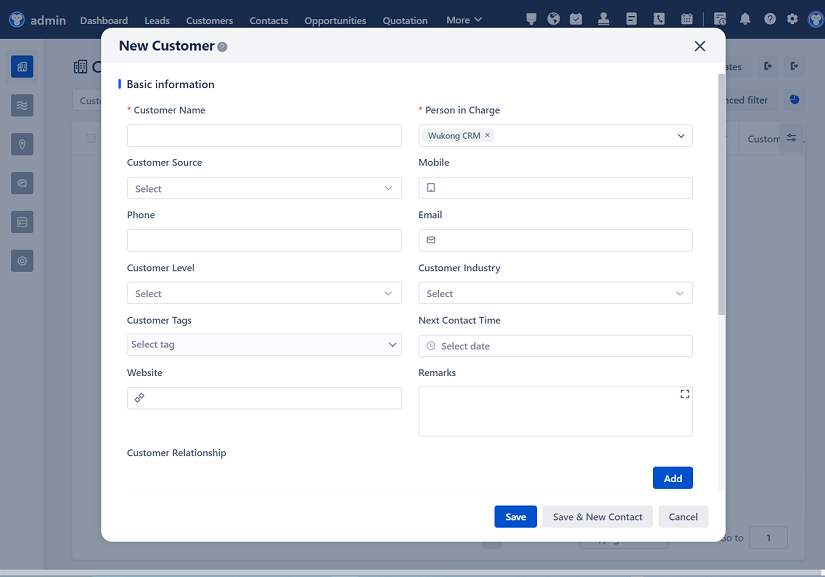
From there, navigating is usually done through a bottom or side menu. Tap on “Contacts,” and boom—you’ve got your list. You can search, filter by status, or sort by last contact date. Want to add someone new? There’s almost always a big plus (+) button somewhere. Tap it, fill in the details—name, company, email, phone—and save. Easy.
Editing a contact is just as simple. Open their profile, tap edit, make your changes, hit save. You can add custom fields too, depending on your CRM setup. Maybe you want to track industry type, contract value, or preferred communication method. The flexibility is nice.
Now, logging interactions—that’s a big one. After a call or meeting, go to the contact’s profile and look for something like “Log Activity” or “Add Note.” You can choose the type (call, email, meeting), write a summary, set a follow-up task, and even tag team members if needed. Some apps even auto-log calls if you have permissions enabled, which is super handy.
Tasks and reminders? Yeah, those are lifesavers. You can create a task manually or set one up after logging an activity. Give it a due date, priority level, and assign it to yourself or someone else. The app will ping you when it’s due. And if you’re using a CRM with AI features, it might even suggest tasks based on past behavior. Pretty smart, right?
One thing people often forget is offline access. A lot of mobile CRM apps let you view and edit records even when you’re not connected to the internet. Changes sync automatically once you’re back online. So if you’re on a plane or in a dead zone, you’re not completely blind.
Syncing is another key point. Your mobile app should stay in sync with the desktop version and your team’s data. Most do this in real time, but it depends on your settings and internet connection. Just make sure background data and notifications are turned on so you don’t miss updates.
Integrations matter too. If your CRM plays well with your email, calendar, or cloud storage, life gets way easier. For example, you can link your Gmail account so every email you send to a client gets logged automatically in their profile. No manual entry required. Same goes for calendar events—if you schedule a Zoom call, it shows up in the CRM.
Security-wise, don’t skip the basics. Use strong passwords, enable two-factor authentication, and avoid using public Wi-Fi to access sensitive data. Most enterprise CRMs have solid security protocols, but it’s on you to follow best practices.
Customization is another area where these apps shine. You can tweak the layout, hide fields you don’t use, or create shortcuts for common actions. Some even let you build custom workflows or approval processes right from the phone. It’s not quite as robust as the desktop version, but it’s getting better all the time.
Updates happen regularly, so keep your app current. Developers are always adding new features, fixing bugs, and improving performance. An outdated app might not sync properly or could have security holes. Just turn on auto-updates and you’re good.
Training is something companies should invest in. Yeah, the app might seem simple, but if your team doesn’t know how to use it effectively, you’re wasting time and money. A quick 30-minute session can make a huge difference in adoption and accuracy.
And speaking of adoption—get buy-in from your team. If people see the app as just another chore, they won’t use it. Show them how it actually saves time, helps them close deals faster, and keeps them organized. When they feel the benefit, they’ll start using it consistently.
Performance-wise, most modern CRM apps run smoothly on newer smartphones. But if you’re on an older device, you might notice lag or crashes. Clearing cache or reinstalling the app sometimes helps. Also, close other heavy apps running in the background—they eat up memory.
Battery usage can be a concern too. Constant syncing and notifications drain power. If that’s an issue, adjust sync frequency or turn off non-essential alerts. You don’t need a ping every time someone updates a note unless it’s critical.
Backups? Don’t worry—your data is stored securely in the cloud, not just on your phone. So if you lose your device, nothing’s gone forever. Still, it’s smart to log out of shared devices and use biometric locks (like fingerprint or face ID) for extra protection.
Finally, remember that a mobile CRM isn’t meant to replace the desktop version—it complements it. You’ll still do deep analysis, complex reports, or system admin stuff on a bigger screen. But for day-to-day customer interactions, being mobile gives you freedom and speed.
All in all, mobile CRM apps are game-changers. They keep you connected, informed, and productive no matter where you are. Whether you’re in the office, at a client site, or halfway across the world, your customer data travels with you. And when used right, they help build stronger relationships, close more deals, and reduce that constant feeling of being overwhelmed.
So yeah, if you’re not using one yet, it might be worth checking out. Start small, learn the basics, and gradually explore more advanced features. Before you know it, you’ll wonder how you ever managed without it.
FAQs (Frequently Asked Questions)
Q: Do I need an internet connection to use a mobile CRM app?
A: Not always. Most apps let you view and edit data offline, and then sync everything once you’re back online. But real-time features like live chat or instant notifications require a connection.
Q: Can I attach files to customer records from my phone?
A: Absolutely. You can upload photos, PDFs, contracts, or any file saved on your phone or cloud storage. Just open the contact, find the attachments section, and tap “Add.”
Q: Is my customer data safe on my phone?
A: Generally, yes—especially if your CRM uses encryption and you’ve enabled security features like passcodes or biometric login. Avoid saving sensitive info on unsecured devices.
Q: Can I customize what fields I see in the app?
A: It depends on your CRM, but many allow admins to tailor the mobile interface. You can hide irrelevant fields or prioritize the ones you use most.
Q: Will using the app drain my phone battery quickly?
A: It can, especially with constant syncing and notifications. To save power, adjust sync settings or disable background refresh for less critical updates.
Q: Can my team see my activities in the CRM?
A: Usually, yes—depending on permission settings. Most systems are designed for transparency so teams can collaborate, but admins can restrict access if needed.
Q: What if I accidentally delete a contact or note?
A: Don’t panic. Most CRMs have a recycle bin or audit trail. Admins can often restore deleted items within a certain timeframe.
Q: Are mobile CRM apps free?
A: Not usually. They’re typically part of a paid CRM subscription. Some offer limited free versions, but full functionality requires a business plan.
Q: Can I use voice commands with my mobile CRM?
A: Some do! Especially those integrated with Siri, Google Assistant, or Alexa. You might be able to log a call or create a task using just your voice.
Q: How often should I back up my CRM data?
A: You don’t need to—it’s automatically backed up in the cloud by your CRM provider. Just make sure your account is active and secure.
Related links:
Free trial of CRM
Understand CRM software
△Click on the top right corner to try Wukong CRM for free