
△Click on the top right corner to try Wukong CRM for free
You know, sometimes the simplest tools end up being the most powerful. I mean, think about it—how many times have you opened Excel just to jot down a quick list of contacts or track a few customer follow-ups? It’s funny how something as basic as a spreadsheet can quietly become the backbone of your entire customer relationship management system, especially when you're just starting out or running a small team.

Free use of CRM system: Free CRM
I’ve seen this happen so many times in real life. A small business owner starts with a notebook, then moves to a Word doc, and before they know it, they’re knee-deep in an Excel file that’s grown into their own little CRM. And honestly? That’s not a bad thing. In fact, for a lot of people, it’s actually smarter than jumping straight into expensive software.
Let me tell you why. See, full-blown CRM platforms like Salesforce or HubSpot are amazing—they really are. But let’s be real: they come with a learning curve, monthly fees, and often way more features than a small team actually needs. I remember talking to a friend who runs a boutique marketing agency. She signed up for a premium CRM, spent two weeks trying to set it up, and ended up using only 20% of its capabilities. Meanwhile, her assistant was already managing client info in Excel—faster, easier, and free.
That’s when it hit me: maybe we’ve been overcomplicating things. What if Excel isn’t the “temporary fix” we keep waiting to replace—but actually a legitimate lightweight CRM solution?
Now, don’t get me wrong—I’m not saying Excel can do everything a dedicated CRM can. But for early-stage businesses, freelancers, or even departments within larger companies, a well-structured Excel spreadsheet can handle core CRM functions surprisingly well. Think contact tracking, lead status updates, follow-up reminders, sales pipelines, and even basic reporting.

And here’s the best part: everyone already knows how to use Excel. You don’t need training sessions, onboarding emails, or IT support tickets. Just open the file, type in the data, and go. That kind of accessibility is huge when you’re trying to move fast and stay agile.
I’ve built a few of these Excel CRMs myself, and let me walk you through how it works. First, you start with a main sheet—let’s call it “Contacts.” You’ve got columns for name, company, email, phone, job title, and maybe a note field. Pretty standard stuff. Then, you add another sheet called “Interactions” where you log every email, call, meeting, or proposal sent. This gives you a timeline of what’s happened with each client.
Want to track deals? Create a “Pipeline” sheet. List each opportunity, assign a value, set a probability, and mark the stage—like “Initial Contact,” “Proposal Sent,” “Negotiation,” etc. Use conditional formatting to color-code them, so at a glance you can see which deals are hot and which ones are stuck.
And here’s a pro tip: use dropdowns in key cells. For example, in the “Status” column, create a dropdown with options like “New Lead,” “Follow-Up Needed,” “Closed – Won,” “Closed – Lost.” That keeps your data clean and consistent, which is something people often overlook.
Oh, and filters! Don’t underestimate the power of filtering. With one click, you can show only high-priority leads or filter by industry or region. It’s not fancy AI, but it gets the job done.
Now, some folks might say, “But what about collaboration?” Fair question. If you’re working alone, sharing an Excel file via email or cloud storage (like Google Drive or OneDrive) works fine. But if multiple people need to update it at once, you’ve got to be careful. Simultaneous editing can cause conflicts. The workaround? Use Excel Online or save the file in a shared folder where only one person edits at a time—or better yet, assign roles. One person manages leads, another handles follow-ups, etc.

Another thing I love about Excel-based CRMs is customization. No vendor forcing you into their workflow. You build it exactly how your team works. Need a column for “Preferred Contact Method”? Add it. Want to track referral sources? Throw in a field. It’s your system, your rules.
And yes, you can even automate parts of it. I’ve used simple formulas to calculate total pipeline value, count active leads, or flag overdue follow-ups. For example, if today’s date is past the “Next Follow-Up” date, use a formula to highlight that row in red. Boom—automated reminder without writing a single line of code.
If you’re feeling adventurous, you can dive into VBA (Visual Basic for Applications) to add buttons that auto-generate emails or export data. But honestly, for most people, basic formulas and formatting are more than enough.
Security-wise, Excel files aren’t as robust as enterprise CRMs, but you can still protect your data. Password-protect sensitive sheets, restrict editing rights, and make regular backups. Store the file in a secure location, and avoid sending unencrypted copies over email.
One concern I hear a lot is scalability. “What happens when you grow?” Well, that’s the beauty—you don’t have to stick with Excel forever. Think of it as a stepping stone. Start simple, prove your process, and when you hit the limits—say, hundreds of contacts or complex automation needs—then it’s time to upgrade. But until then, why pay for something you don’t fully need?
I’ve seen startups use Excel CRMs for over a year before switching. By then, they knew exactly what features mattered, so their transition to a paid CRM was smooth and purposeful.
Another advantage? Integration. Excel plays nice with other tools. You can import data from email campaigns, export lists for mail merges, or pull in survey results. I once connected an Excel sheet to a Google Form so client intake requests automatically populated the CRM. Took me 15 minutes to set up, saved hours every week.
And let’s talk cost. Most companies already have Microsoft Office licenses. So your CRM? Free. Compare that to $50 per user per month on some platforms. Over a year, that’s thousands saved—money you can put into marketing, product development, or hiring.
Of course, Excel has limitations. No real-time notifications. No mobile app experience. No built-in email tracking. And if your file gets corrupted, you could lose everything unless you’ve backed it up. These are real risks, no sugarcoating.
But here’s the thing: lightweight doesn’t mean low-value. Sometimes, the best tool isn’t the fanciest one—it’s the one you’ll actually use consistently. And for many teams, that’s Excel.
I’ve watched solopreneurs turn a simple spreadsheet into a client-tracking powerhouse. One consultant I know uses color-coded tabs for different projects, links related sheets together, and even generates monthly reports using pivot tables. Her clients had no idea she wasn’t using a six-figure SaaS platform.
The key is discipline. A messy spreadsheet becomes useless fast. So set rules: update it daily, audit it weekly, delete outdated entries. Treat it like a living document, not a dumping ground.
And involve your team. Get feedback. Ask, “Does this layout make sense?” “Should we add a field for budget range?” When people help shape the system, they’re more likely to use it.
Honestly, I think we undervalue simplicity. We get dazzled by dashboards and integrations and AI predictions, but at the heart of CRM is just one thing: knowing your customers. Tracking their names, needs, conversations, and next steps. Excel does that just fine.
Plus, there’s something satisfying about seeing your entire customer base in one file. No hidden algorithms, no confusing menus. Just clear, transparent data you control.
So, should every business use an Excel-based CRM? No. If you’re managing thousands of leads across global teams, you’ll outgrow it fast. But if you’re a small team, a freelancer, or launching a side project, give it a shot. Build it yourself. Tweak it. Own it.

You might be surprised how far a simple spreadsheet can take you.
And hey—if down the road you decide to switch to a full CRM, you’ll have clean, organized data ready to import. Your future self will thank you.
At the end of the day, tools should serve you, not the other way around. And sometimes, the old-school, no-frills option is exactly what you need to get started, stay focused, and keep moving forward.
So go ahead—open Excel, start a new workbook, and build your own lightweight CRM. You’ve got nothing to lose and a whole system to gain.
FAQs (Frequently Asked Questions)
Wait, isn’t Excel too basic for CRM tasks?
Honestly, it depends on your needs. If you’re just tracking contacts, follow-ups, and basic deal stages, Excel is more than capable. It’s not about being flashy—it’s about being functional.
Can multiple people use the same Excel CRM at once?
Yes, but with caution. Use Excel Online or OneDrive to allow real-time co-authoring. Otherwise, you risk version conflicts. Set clear guidelines on who updates what and when.
What if my file gets lost or corrupted?
Always back it up! Save copies regularly, use cloud storage with version history, and consider keeping a secondary backup on another drive. Better safe than sorry.
How do I prevent data entry errors?
Use data validation—like dropdown lists, required fields, and input restrictions. Train your team on best practices, and do periodic cleanups to remove duplicates or outdated info.
Can I automate anything in an Excel CRM?
Absolutely. Simple formulas can calculate totals, flag overdue tasks, or count leads by status. For more advanced automation, explore macros or Power Automate integration.

Is it secure to store customer data in Excel?
It can be, if you take precautions. Password-protect the file, limit sharing permissions, avoid storing highly sensitive data (like credit card numbers), and encrypt the file if needed.
When should I stop using Excel and switch to a real CRM?
When you’re spending more time managing the spreadsheet than serving customers. Or when you need features like email tracking, task assignments, mobile access, or deep analytics—then it’s time to upgrade.
Can I import my Excel CRM data into a professional CRM later?
Yes! Most CRMs support CSV imports, which Excel can easily export. Just make sure your columns match the required format, and clean up any inconsistencies first.
Do I need coding skills to build an Excel CRM?
Not at all. Basic Excel knowledge—like entering data, using formulas, sorting, and filtering—is enough to get started. You can learn more advanced tricks as you go.
Isn’t this just a temporary fix?
Maybe—but sometimes temporary fixes last years. And even if you eventually move on, starting with Excel helps you understand your workflow before investing in complex software.
Related links:
Free trial of CRM
Understand CRM software
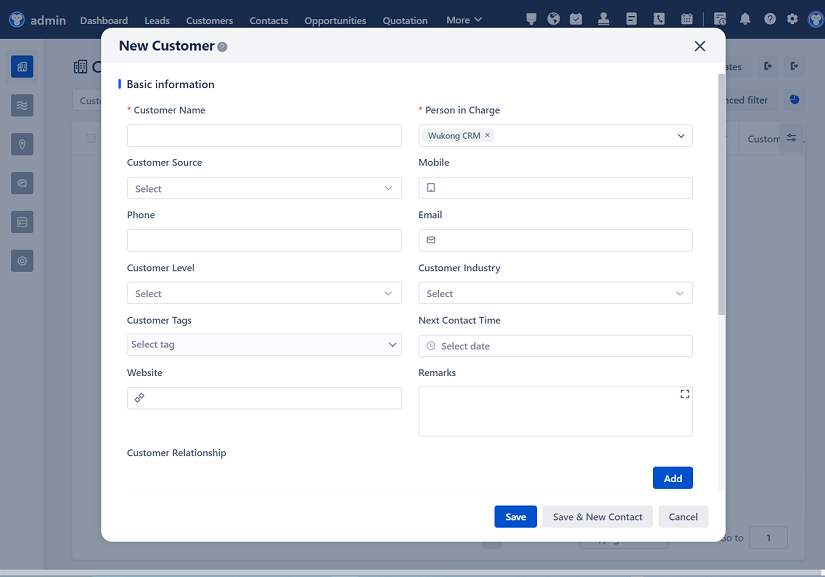
△Click on the top right corner to try Wukong CRM for free