
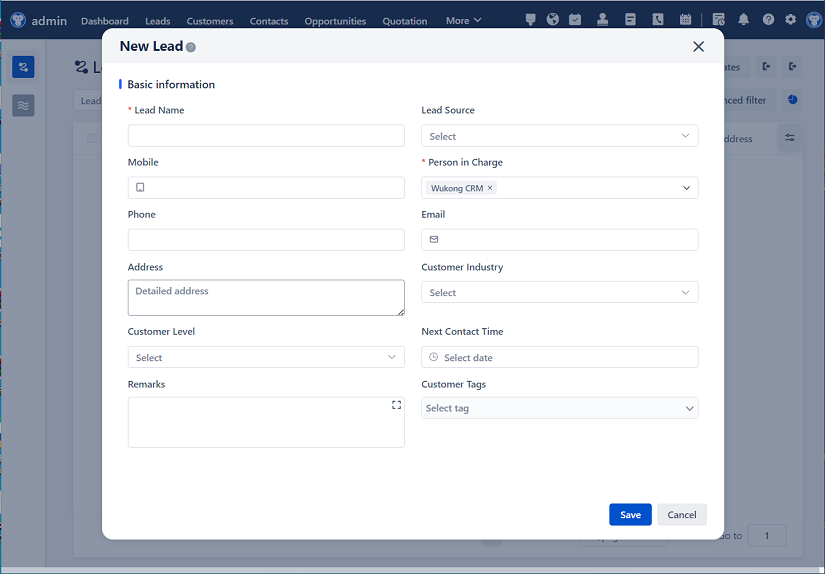
△Click on the top right corner to try Wukong CRM for free
You know, when I first started working with CRM systems, I honestly didn’t think much about role permissions. I mean, sure, I knew people had different access levels—like how sales reps could see customer info but maybe couldn’t edit pricing—but I never really dug into why that structure existed or how important it actually was. But over time, especially as our team grew and we brought in more departments like marketing, support, and finance, things started getting messy. People were accidentally changing data they shouldn’t have, some folks couldn’t get the reports they needed, and there was this constant back-and-forth: “Can you pull that report for me?” or “Why can’t I see that deal?” It got to the point where productivity was slowing down, and honestly, it felt a little chaotic.
So, I decided to take a step back and really look into how role permissions are divided and managed in CRM systems. And let me tell you, once I started digging, I realized just how crucial this whole setup is—not just for security, but for efficiency, accountability, and even user satisfaction. Because here’s the thing: a CRM isn’t just a database; it’s a living system that multiple teams rely on every single day. If the permissions aren’t set up right, it’s like giving everyone a key to every room in the office—sure, it sounds convenient at first, but sooner or later, someone’s going to walk into the wrong meeting or mess up an important document.

Now, when we talk about dividing roles in a CRM, what we’re really talking about is defining who can do what. And that starts with understanding your organization’s structure. Like, who are the main players? Salespeople, managers, admins, customer support, marketing analysts—the list goes on. Each of these roles has different needs. A sales rep might need full access to their own leads and opportunities, but they probably don’t need to see payroll data or modify system settings. On the other hand, a sales manager might need to view and edit their team’s records, run performance reports, and maybe adjust forecasting data—but still shouldn’t be able to delete entire accounts or change global configurations.
So, the first step is mapping out these roles clearly. I found it super helpful to sit down with team leads and ask questions like: “What information does your team need daily?” or “Are there any actions you wish you could do but currently can’t?” That way, instead of guessing, I was building roles based on real workflows. And trust me, people appreciate being involved—it makes them feel heard and also reduces resistance when changes roll out.

Once you’ve defined the roles, the next part is assigning permissions. Most modern CRMs—like Salesforce, HubSpot, or Zoho—use something called role-based access control (RBAC). It’s basically a way to bundle specific permissions into predefined roles. For example, you might create a “Sales Rep” role that includes permissions to create, read, update, and delete (that’s CRUD, by the way) their own contacts and deals, but only read access to other teams’ data. Then you’d have a “Sales Manager” role with broader access across their team, plus reporting tools.
But here’s where it gets tricky: permissions aren’t just about who sees what. They also affect data visibility and sharing rules. Let’s say two sales reps are working on related accounts. Should they be able to see each other’s notes? Maybe, but only if they’re collaborating. That’s where sharing rules come in—they let you fine-tune access beyond the basic role definitions. Some systems even allow territory-based access, so reps in the Northeast region only see accounts in that area. It keeps things focused and prevents information overload.
And speaking of overload—have you ever logged into a CRM and seen 50 tabs you never use? Yeah, that’s another reason good permission management matters. When users only see the features and data relevant to them, the system feels cleaner and easier to navigate. I remember one time we onboarded a new support agent who was overwhelmed because she could see sales forecasts, commission plans, and product development timelines. None of that was useful to her job, and it just made the interface confusing. After we tightened her role permissions, she said, “Wow, this actually makes sense now.” Small change, big impact.
Now, I should mention that setting up roles isn’t a one-and-done task. Organizations evolve. People change roles, teams restructure, new features get added. So, permission management has to be ongoing. I try to do quarterly reviews where I check in with department heads and audit who has access to what. It’s kind of like spring cleaning for your CRM. You remove old users, update roles, and make sure no one has more access than they need. This is especially important from a security standpoint—because the last thing you want is a former employee still having access to customer data.
Another thing I’ve learned is that too many custom roles can backfire. At one point, we had like 15 different variations of “sales” roles—junior rep, senior rep, account executive, regional lead—you name it. It became a nightmare to maintain. So we simplified. We created three core sales roles and used permission sets or profiles to add small tweaks where needed. It made updates way easier and reduced confusion.

Oh, and don’t forget about admins. System administrators need broad access, obviously, but even they should follow the principle of least privilege—meaning they only get the permissions absolutely necessary to do their job. And ideally, admin access should be monitored and logged. I once discovered that someone had been using an admin account to export large amounts of customer data without approval. Thankfully, the audit trail caught it early. Since then, we’ve implemented stricter controls and multi-factor authentication for admin logins.
Training is another piece that often gets overlooked. Just because you’ve set up perfect roles doesn’t mean people will use the system correctly. I’ve seen cases where users shared login credentials because “it was easier,” completely undermining all the permission work we’d done. So now, part of our onboarding includes a session on data security and role responsibilities. We explain not just how to use the CRM, but why certain restrictions exist. When people understand the reasoning—like protecting customer privacy or ensuring data accuracy—they’re way more likely to follow the rules.
Integration with other tools also plays a role here. Many companies connect their CRM to email platforms, marketing automation tools, or ERP systems. Each integration can introduce new access points, so you’ve got to make sure those connections respect your permission model. For example, if a marketing tool pulls contact data from the CRM, it shouldn’t expose sensitive fields like contract values or internal notes unless explicitly allowed.
One last thing—user feedback. I can’t stress this enough. The people using the CRM every day are the ones who’ll spot gaps or frustrations first. I always leave the door open for suggestions. Someone once pointed out that customer service reps needed temporary edit access during escalations, which led us to create a time-limited permission override feature. It was a small addition, but it made a big difference in how quickly issues got resolved.
At the end of the day, managing role permissions in a CRM isn’t just about locking things down. It’s about enabling the right people to do their jobs effectively while protecting sensitive information and maintaining data integrity. It’s a balance—too restrictive, and you slow people down; too loose, and you risk errors or breaches. But when it’s done well, the whole organization runs smoother. Teams collaborate better, reporting becomes more accurate, and users actually enjoy using the system instead of dreading it.
So yeah, it might seem like a behind-the-scenes detail, but trust me—role permissions are the invisible backbone of a healthy CRM environment. Spend the time getting them right, keep them updated, and listen to your users. Your future self—and your entire team—will thank you.
FAQs (Frequently Asked Questions):
Q: What happens if I give everyone the same permissions in my CRM?
A: Well, technically, it might work at first—especially in a very small team. But as you grow, you’ll start seeing problems like accidental data changes, difficulty tracking accountability, and increased security risks. Plus, users get overwhelmed by irrelevant data and features.
Q: How do I decide who gets admin access?
A: Only give admin access to people who truly need it—like IT staff or CRM managers. Always use strong passwords, enable two-factor authentication, and review admin activity logs regularly. Less is more here.
Q: Can I let users request temporary access to certain data?
A: Absolutely! Some CRMs allow permission requests or temporary overrides. It’s a great way to maintain security while staying flexible for special cases.
Q: What’s the difference between a role and a profile in CRM systems?
A: Great question. In systems like Salesforce, roles define data visibility (who sees what), while profiles control object-level permissions (like whether you can edit a record). They work together but serve different purposes.
Q: Should contractors or external partners have CRM access?
A: They can, but be super careful. Use limited, time-bound roles with strict permissions. Never give them full access, and always revoke it when the project ends.
Q: How often should I review role permissions?
A: I recommend at least every quarter. But if your company is growing fast or going through changes, you might want to check monthly. Better safe than sorry.
Q: What if a user says they need more access than their role allows?
A: Don’t just say yes—ask why. Understand their workflow. Maybe they need training, or maybe there’s a gap in the role design. Address the root cause, not just the symptom.
Q: Are there tools that help automate permission management?
A: Yes! Many CRMs have built-in tools for role hierarchy, permission sets, and access reviews. Third-party governance tools can also help monitor and streamline the process.
Related links:
Free trial of CRM
Understand CRM software
AI CRM Systems
△Click on the top right corner to try Wukong CRM for free